Connecting an external graphics card (eGPU) to a Thinkpad T540p
In an effort to enhance the performance of my ThinkPad T540p, I considered adding an external graphics card via the ExpressCard slot. These older ThinkPads, released in 2013, were equipped with the deprecated ExpressCard slot that connected to the PCIe lanes on the motherboard. As the name suggests, these are large, rectangular cards that slide into the laptop. Therefore, by using an appropriate adapter they can be used to connect PCIe devices to the laptop.
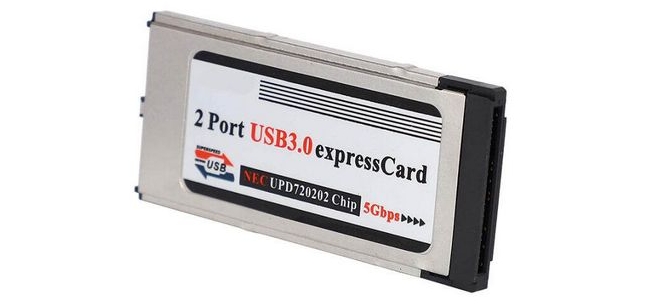
ExpressCard Adapter to add USB-3.0 Ports
Express card adapter
Fortunately, this modification is common for this generation of ThinkPads and inexpensive adapters are readily available. The most popular choice among users is the EXP GDC Beast adapter. This small, rectangular device features a PCIe x16 connection and an HDMI cable that connects to a male ExpressCard connector.
It’s worth noting that this adapter is designed to be connected to a Dell DA-2 12-volt power brick. Upon connecting the adapter to the computer, the power supply automatically turns on, providing power for the video card or any other device connected to the PCI slot. This setup process is straightforward and requires purchasing just three components:
- The EXP GDC ExpressCard adapter
- The DA-2 power supply
- A video card compatible with your use case
In addressing the final requirement, it’s important to acknowledge that the ExpressCard to PCIe connection presents a considerable bottleneck. These older ThinkPads can only achieve a maximum Gen 2 connection, limiting the bandwidth between the card and the computer to approximately 500 megabytes per second (which is similar to SATA-3 speeds). This is significantly lower than the gigabyte speeds achievable through a direct PCIe x16 connection.
In practice, this means that the connected graphics card will ultimately be limited by this communication bottleneck. Although it’s possible to physically connect a powerful graphics card to the adapter, its full potential may not be realized due to this bottleneck. There is a maximum practical limit for best the graphics card that should be connected to the adapter, because running a card more powerful than this threshold would not yield significantly better results.
Graphics card
According to the EXP adapter manual, the transition point for this limitation occurs around a graphics card with performance similar to the Nvidia GTX 750. Using a more powerful video card will lead to severe diminishing gains due to the bandwidth limitations. Conversely, connecting a weaker video card allows for some possible performance improvement by adding a more powerful card to the setup. Despite the GTX 750 representing a point of near optimal performance, it’s essential to note that even this video card won’t run at its maximum potential. For instance, if we compare the same video card connected to a desktop computer, it would deliver far greater performance. However, once we compare this adapted video card to the integrated graphics of the ThinkPad, the difference in performance becomes substantial.
With these factors in mind, I proceeded to purchase both the adapter and the power supply and obtained an Nvidia Quadro K2200 video card from a used desktop workstation. This graphics card is comparable to the GTX 750 but features significantly more VRAM, 4 gigabytes, compared to the typical 2 gigabytes on the GTX-750. Having greater VRAM is important because whatever computations are performed on the graphics card can be isolated to this device if there’s sufficient memory. By offloading these computations to the GPU, the card does not have to communicate with other components as frequency, and can potentially reduce the bandwidth requirements of the PCIE lane.
Assembling components
Once all the components arrived via mail, I assembled them and created a functional system. However, the compatibility of this setup is highly dependent on the operating system being used. In my case, I was using Windows 10 LTSC and Ubuntu 24.04.
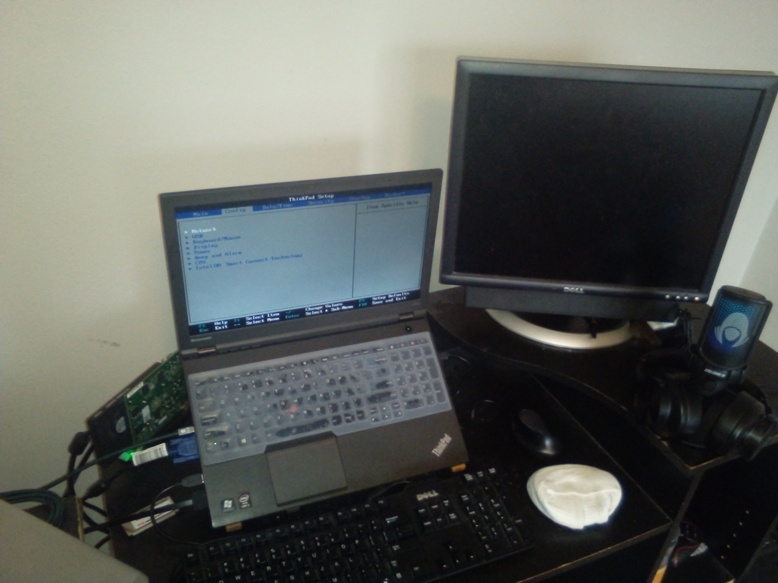
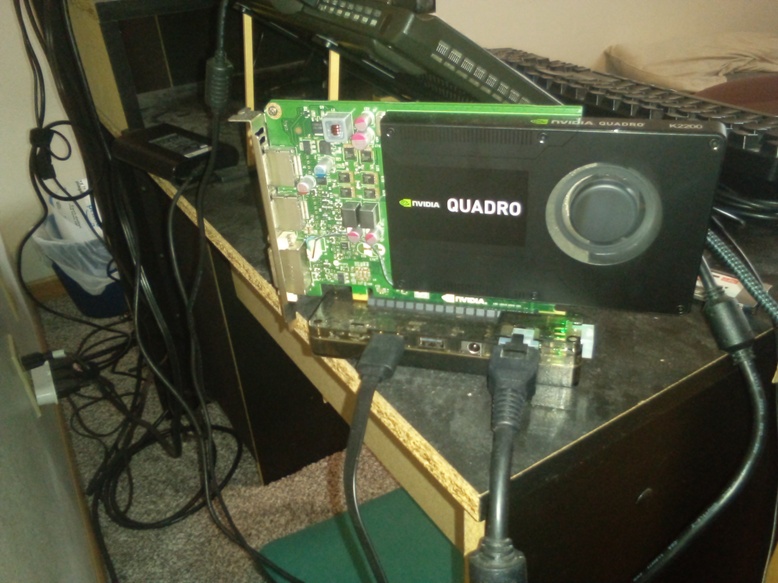
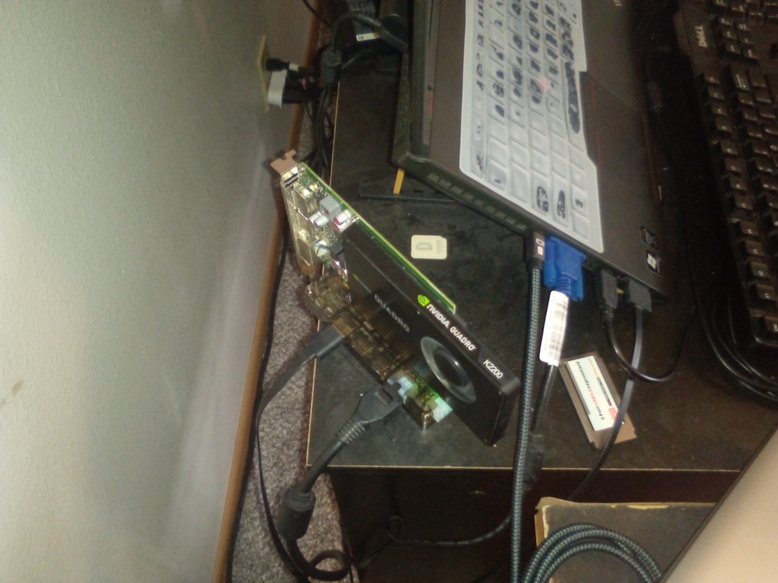
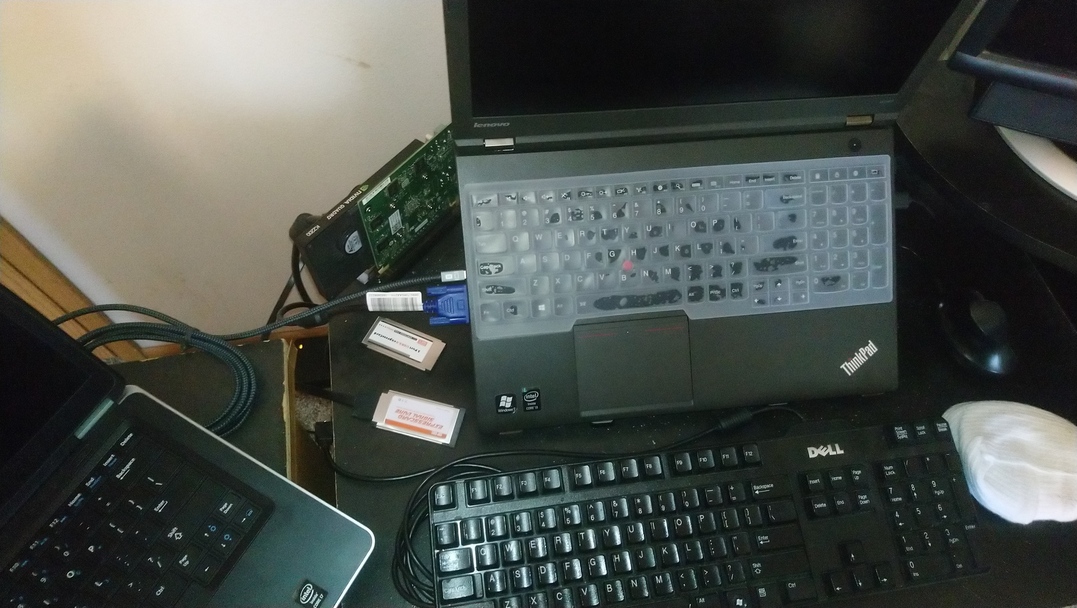
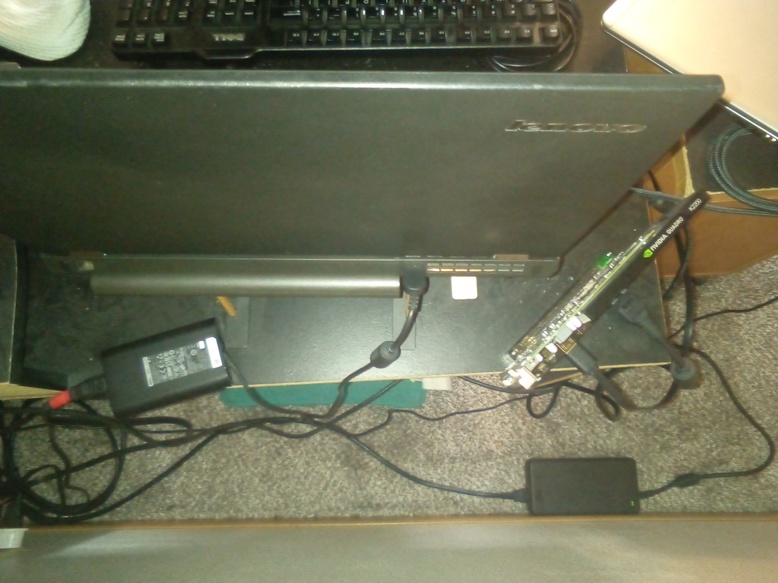
The laptop connected to the adapter and the GPU
Fortunately, there are numerous videos online that showcase similar configurations. These videos are helpful to understand what to do even if they do not use the exact laptop or graphics card. In my configuration, I connected everything together and then powered on the laptop. It’s essential to note that the express card slot can theoretically support hot swapping. That is, connecting and disconnecting devices while the computer is on. However, to avoid any compatibility issues, I ensured the card was connected to the computer before turning it on.
eGPU on Linux Mint
eGPU on Windows 10
Upon booting up the computer, I made no significant modifications to the BIOS configuration. The ThinkPad can be configured to run the express card at either Gen 1 or Gen 2 speeds. I opted for the default automatic settings, meaning that it would default to Gen 2 speeds if the connected device supported it. While this isn’t the most recommended setup—Gen 1 is generally considered more stable with this particular adapter—leaving it on auto allows for adaptability should the connected device require a different protocol.

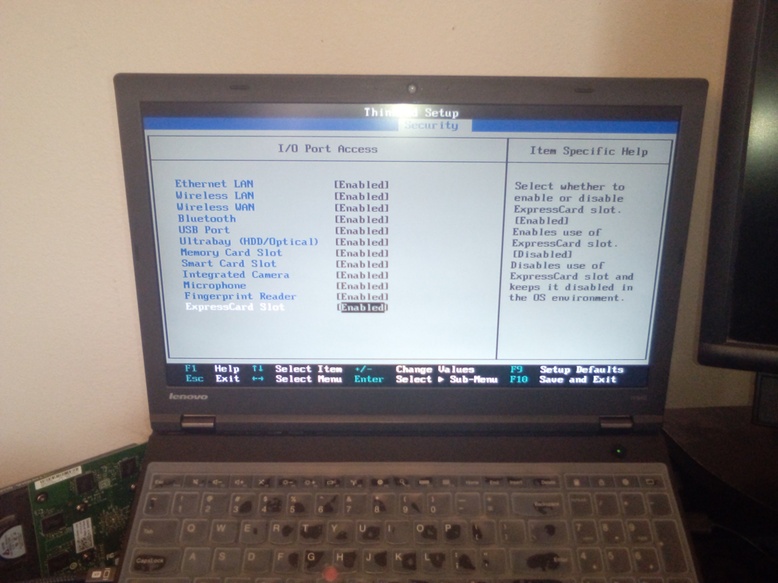
The BIOS configuration for the ExpressCard
As I understood, the slower speed is recommended due to the exposed HDMI cable that transfers information between the EXP adapter and the express card slot. Some online posts suggest covering the cable with aluminum foil to eliminate any potential electrical interference coming from the exposed graphics card or the power supply. Despite these warnings, I opted not to follow the safer configuration as I was unsure if running at a slower speed would be necessary. Perhaps the video card I was using would be stable enough, and this configuration would not be needed.
Testing on Windows
Initially, I booted into Windows to ensure that the video card would be detected. Since Windows offers better compatibility with Nvidia cards as compared to Linux, I wanted to confirm that the adapter and hardware were correctly detected by the operating system and computer before proceeding. Fortunately, upon logging into the OS, I was able to access the device manager, where the Nvidia card was clearly visible. After installing the appropriate drivers (Nvidia RTX/Quadro v550), the graphics card was effectively detected by the task manager.
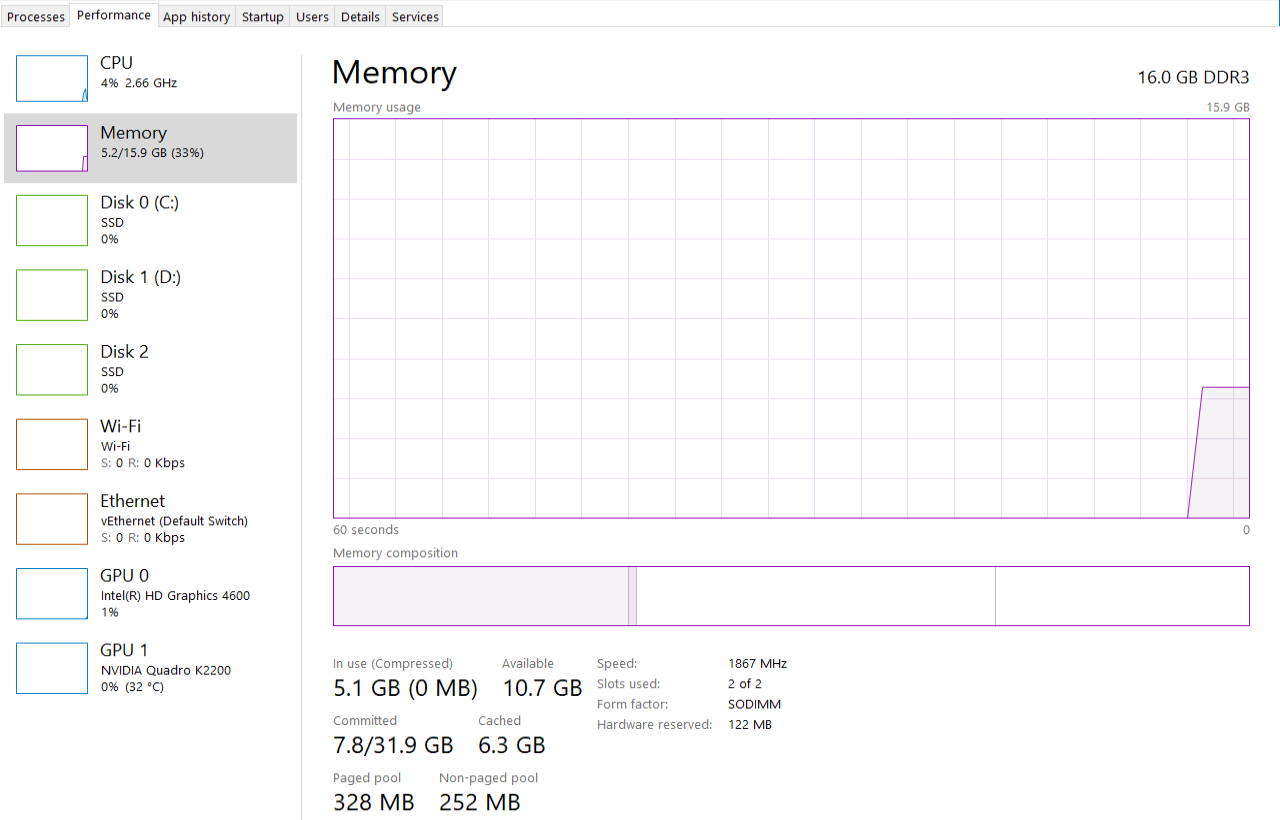
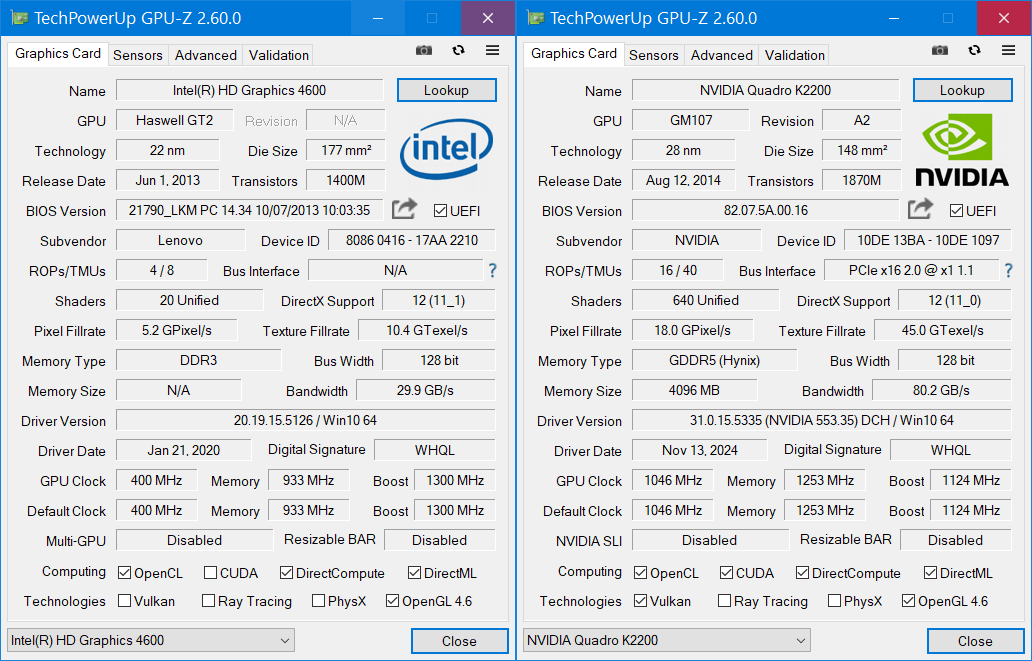
Windows fully recognized the second GPU
After rebooting the computer to ensure that any driver configurations were properly loaded, I conducted a series of tests using various video games to determine if the adapter and graphics card had an impact on performance. Initially, there was no external monitor connected to the graphics card; instead, the isolated graphics card communicated with the computer solely via the Express Card adapter. The first game I tested was the 2007 version of Crysis with all settings set to max. Since the laptop was equipped with a 1080P monitor, I ran the game from that display. Under these conditions, the game averaged around 45 frames per second, occasionally dipping to 30 frames per second but generally maintaining consistent performance at approximately 50-45 frames per second. This was significantly better to running on the game on integrated graphics, which with this configuration would yield 10-15 frames per second.
Using an External Monitor:
With the increased performance now evident, the improvement was around two to three times greater than the integrated graphics, which is very significant. To minimize data transfer through the express card bottleneck, I connected an external monitor directly to the video output of the graphics card. This action noticeably deteriorated the smoothness of the video on the monitor.
When the external monitor was attached directly to the laptop instead of the video card, the integrated graphics handled the display on the screen, resulting in a fluid and seamless motion when compared to the built-in display. However, when the external monitor was linked to the video card and not the laptop, the video on the screen became significantly more choppy due to what I believe is the bandwidth limitation.
Since integrated graphics inherently have a higher bandwidth, as they are physically connected to the processor and rather than going through a slow external adapter, the decrease in performance is makes sense. Despite the seemingly jerkier behavior, running a game on it actually improved the experience. For instance, when returning Crysis, the game ran significantly better. Despite the external screen having to run at a lower resolution (around 720p). The frame rate reached a consistent 60 frames per second with all graphic options set at maximum. That was 15 FPS more than the when the video output was routed through the laptop. It’s challenging to determine whether this was due to the reduced resolution or the unloading of data transfer from the Express card, but it does suggest that minimizing the bottleneck made a difference in the actual performance of the graphics card.
Effects of ExpressCard bottleneck:
With the restrictions of this bottleneck becoming apparent, it was interesting to observe the GPU utilization reported by the task manager. For instance, running Sky: Children of the Light, a free-to-play game available on Steam, showed that changing video settings did not significantly impact the frames per second (fps) despite the GPU being stuck at 100%. When the game was set to its lowest graphical settings, it would run at around 20 fps. Surprisingly, increasing the details of the game to their maximum and setting the resolution to 1080p resulted in a of around 18 FPS. At some points it even remained at 20 FPS albeit with noticeably more jerky motion. This suggested that the low frame rates were not due to the graphics card’s incapability of providing higher performance, but rather that the express card bottleneck was preventing the card from transferring enough data to achieve higher frame rates. Thus, changing graphical settings did little to affect the reported frame rate.
To confirm the improvement, I decided to try another game: Dark Souls: Prepare to Die Edition. At 720p with high graphical settings, it would reach approximately 30 fps on integrated graphics, occasionally dropping to 25. In contrast, using the external GPU allowed it to achieve around 60 fps (sometimes dropping to 45) but generally reaching an average of 50-55 fps. This demonstrated nearly double the frames per second by utilizing the external GPU, which was consistent with the results from Crysis.
Bluescreen crashes:
After running the GPU for about an hour, I noticed Windows would crash and enter a bluescreen. It seems the problem lay in the default configuration of PhysX inside the Nvidia control panel. Once this was configured to use the CPU, the bluescreen problems went away.
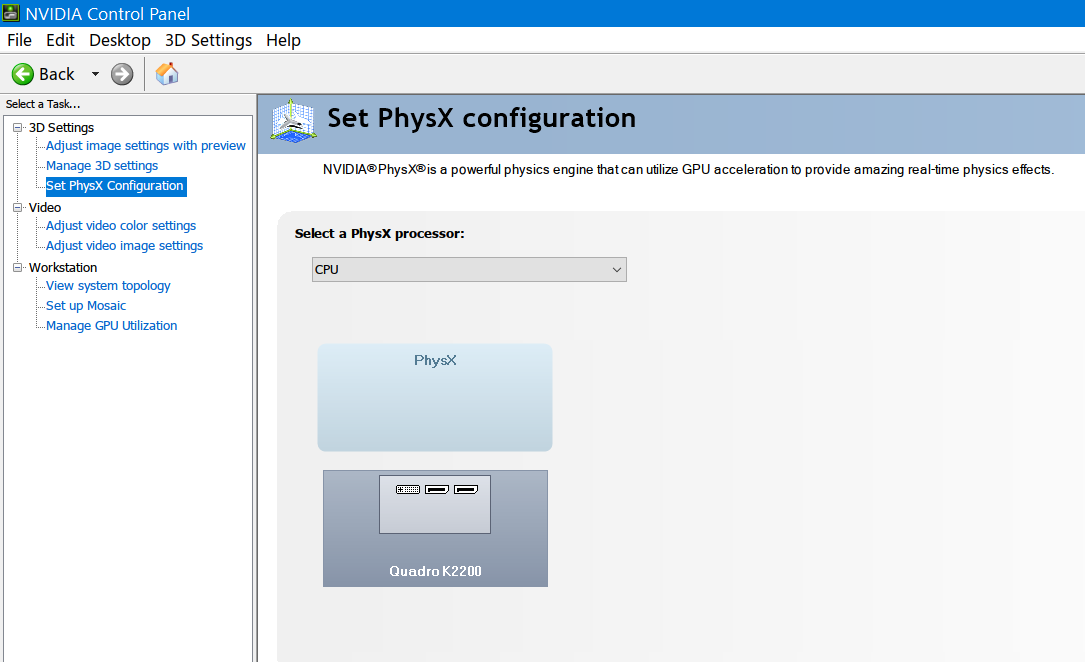
PhysX set to CPU ensured long-term stability
Testing on Linux
Having observed substantial improvements when using an external graphics card in Windows, I decided to test its performance on Linux to see if the effects were just as significant. Booting into Linux, I first verified if the device was recognized by the operating system, which it was upon running lspci. Thereafter, I downloaded the proprietary drivers Nvidia Drivers v550. As with Windows, restarting the computer was required after the drivers were installed to ensure utilize the GPU correctly.
After installing the proprietary drivers, I repeated the same tests by running the graphics card without an external monitor connected to it. To stress the video card, I utilized the PSP emulator PPSSPP to run God of War: Chains of Olympus. It’s worth noting that I used the Flatpack version of the application; therefore, it was necessary to install a separate copy of the Nvidia drivers within the Flatpack environment for applications running in Flatpack to recognize the device.
See:
During an initial installation the correct drivers are pulled automatically. However, whenever the global drivers installed on the actual operating system are updated, the drivers within Flatpack also need to be updated. If there is a difference between the versions, then Flatpack will fail to recognize that a discrete GPU is connected to the system. This unfortunately adds an additional compatibility layer that needs to be taken into account.
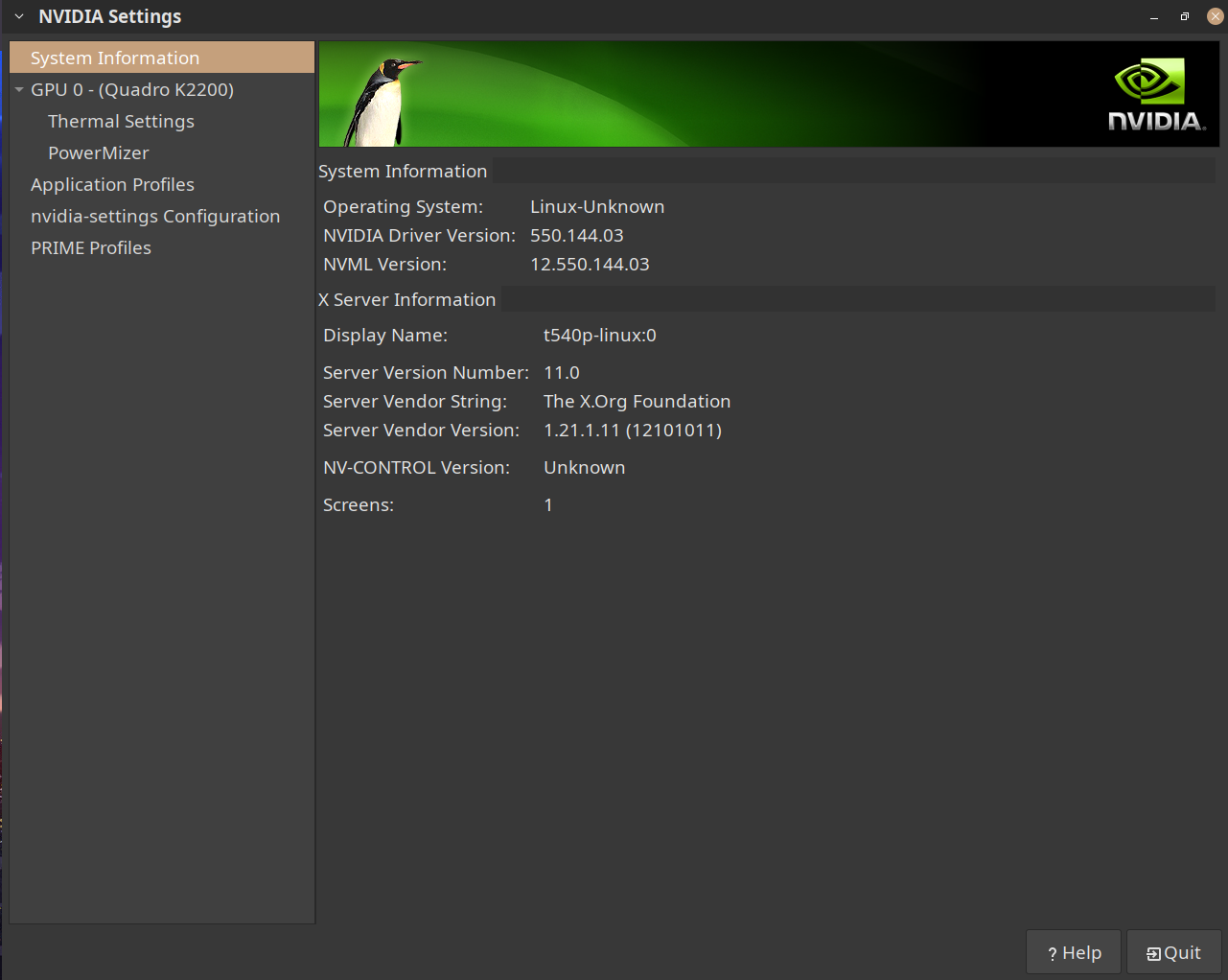


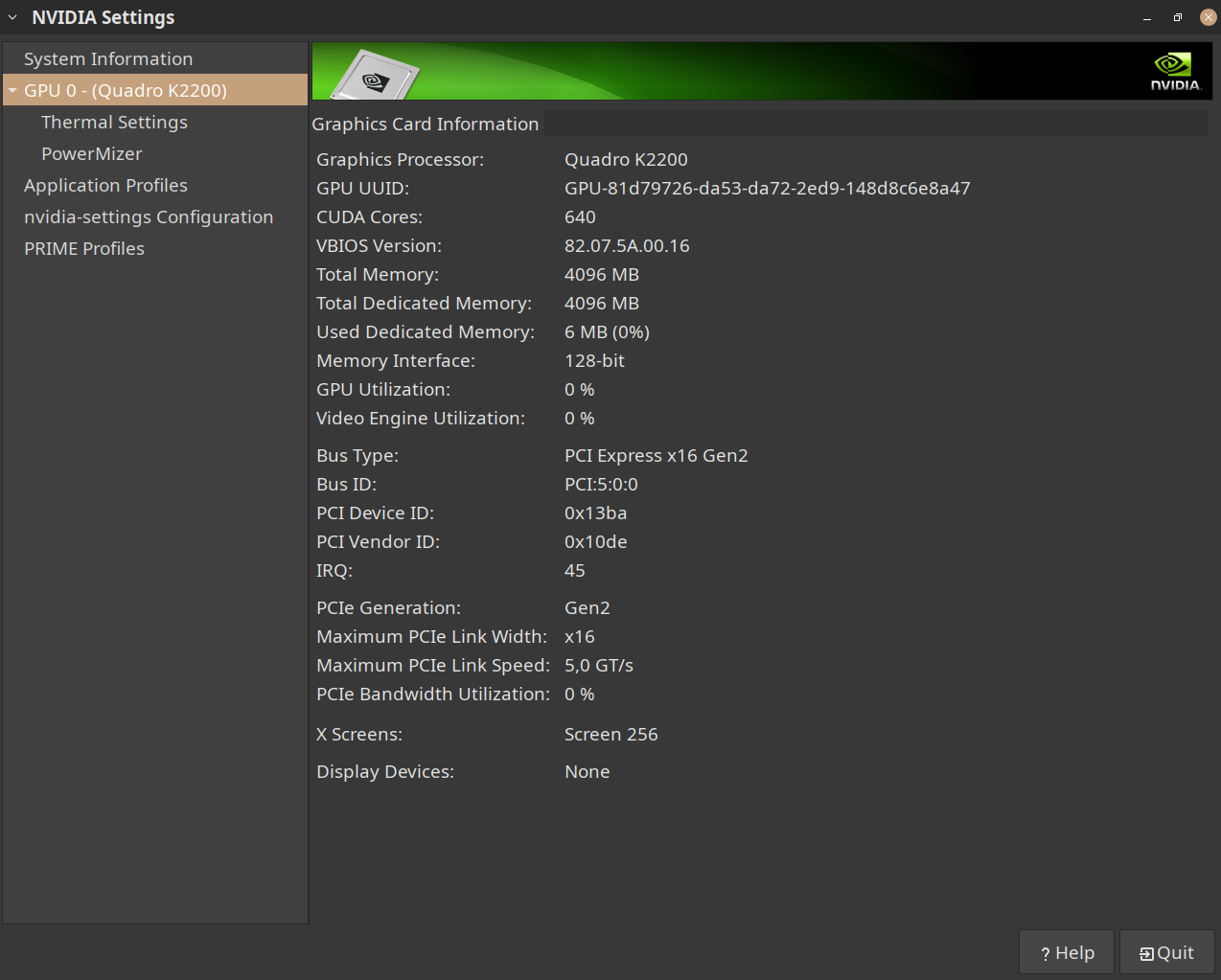
Nvidia configuration on Linux. Note PCIe Speeds
With the configuration finalized, the PSP emulator recognized the video card and I was able to run the game. In contrast to running the integrated graphics, I observed that the frames per second were actually lower; the IGPU could manage a stable 60fps at approximately 720p with FXAA anti-aliasing. However, using the external graphics card resulted in about 50 to 55 fps. By employing nvtop to check the GPU performance, I noticed that the GPU was running at 100% utilization. Additionally, the bandwidth utilization, was nearly saturated with incoming and outgoing information roughly adding to the 500 megabytes per second limit of the express card.
See:
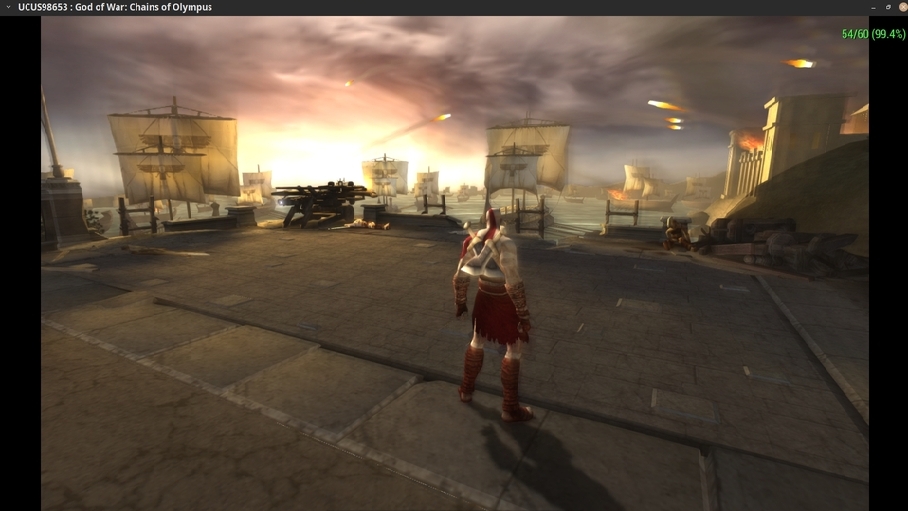

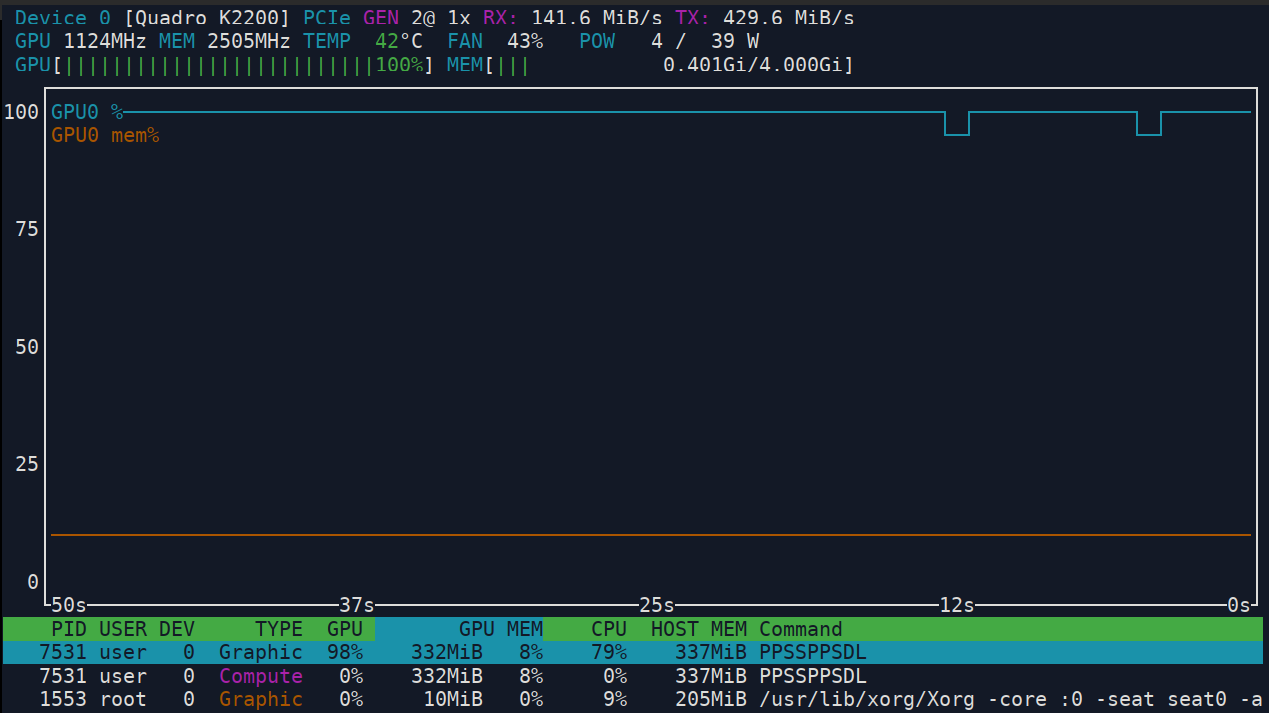
Configuration and results when running PPSSPP
Despite this bottleneck and lower frames per second, I managed to increase the resolution at which the game was rendered to around three to four times the original resolution or approximately 1080p. Surprisingly, the frames per second remained steady at approximately 50, indicating that a similar effect was taking place on Linux as occured in Windows, where the bandwidth ultimately limited the maximum frames per second.
To determine if connecting an external monitor made any difference, I connected one directly to the graphics card instead of routing it through the laptop. In this configuration, performance on Linux was significantly worse than on Windows, with the image rendered on the external monitor appearing very jerky and delayed. Furthermore, upon starting the PSP emulator, the frame rates were not significantly different, and in some cases appeared a little choppier. Thus, connecting an external monitor did not enhance the performance. Moreover, it seemed that the PCIe usage of the video card was not substantially reduced because nvtop reported significant incoming and outgoing data transfer.
Driver performance: Windows vs Linux:
This discrepancy was striking as it contradicted the experience in Windows. Upon investigation, it appears that this might actually be due to how Nvidia drivers function on both operating systems. On Linux, they seem to perform worse than on Windows, which may account for the performance disparity.
This is significant, as Nvidia drivers in Linux are not capable of using of system memory as a supplement for additional VRAM required by the graphics card. This differs from how the drivers work in Windows where there is shared memory. This means that when the VRAM is insufficient for running a specific video process, the GPU can utilize system RAM as a slow buffer, much like how a computer uses swap on a hard drive to compensate for limited RAM.
I’m uncertain as to why this is the case, but my assumption is that this may be a deliberate move by NVIDIA. It encourages users to purchase video cards with more VRAM than they otherwise would if the cards could access system RAM. This scenario is precisely opposite when using AMD video cards. With AMD, their drivers have shared memory enabled by default on Linux, resulting in better performance on Linux compared to Windows. Thus, this is driver discrepancy an essential aspect to consider when purchasing a video card.
Machine Learning tasks:
To further assess the video card’s performance in Linux, I ran a small program that utilized Keras with a Pytorch backend to offload computations to the GPU. Remarkably, when running this program on the Nvidia Quadro through the Express card, performance was approximately twice to 2.5 times faster than simply running the program on the CPU.

PCIe usage when training a small neural net
See: keras-example.py
It is uncertain if this leverages the full computational power of the video card (it likely does not); however, it’s worth noting that the improvement in speed is comparable to using a more powerful processor. As such, it’s not necessarily apparent whether investing in an external adapter and graphics card for machine learning computation on a budget is advantageous. It appears that a similar amount of money can be spent on obtaining a used desktop computer with a dedicated video card that works at full speed. Moreover, the stability of the express card to PCIe adapter is also questionable; thus, opting for a desktop computer will yield better and more stable results.
Conclusion
In summary, this project demonstrated the importance of PCIe bandwidth in determining the maximum computational power of a graphics card. Additionally, it underscored how operating systems can significantly impact device performance due to differing driver optimization. Here are the takeaways:
-
An AMD card is better suited for Linux as its drivers seem to function noticeably better compared to Nvdia. The drivers support a form of shared-memory that allows a graphics card with lower VRAM to still achieve good performance while avoiding out-of-memory errors. This is not the case with Nvidia that lacks shared memory of Linux.
-
For gaming, the improvements are noteworthy, with the external adapter and graphics card enhancing performance on Windows. However, whether this improvement is significantly better than simply running a newer computer with integrated graphics remains uncertain, since the increase in performance is substantial but not enormous. Integrated graphics, despite being weaker, may function more efficiently due to their higher bandwidth.
-
For the purpose of machine-learning on a budget, it would be advisable to obtain a desktop computer instead of the external graphics card. This setup will very likely present unnecessary bottlenecks and lackluster performance.